> ## Documentation Index
> Fetch the complete documentation index at: https://rpa.bazhuayu.com/helpcenter/llms.txt
> Use this file to discover all available pages before exploring further.
# 通用文字识别
## 指令说明
**描述:** 使用 OCR 识别图片中的文字,并返回文字内容及其位置坐标。
## 参数说明
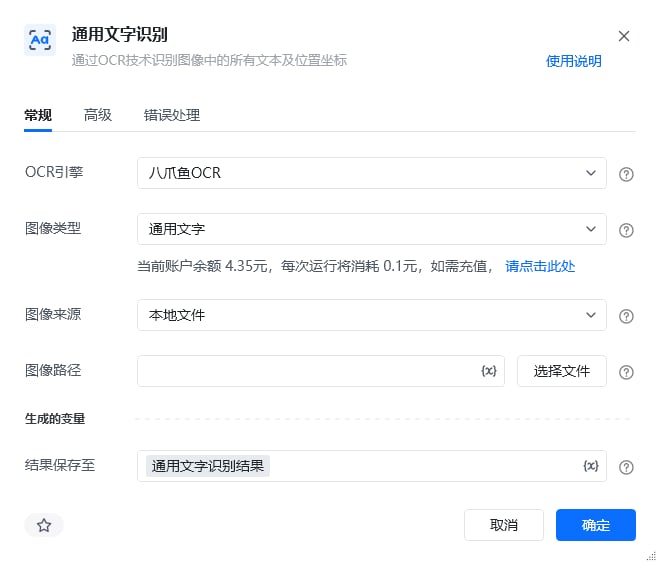 | 参数 | 说明 |
| --------- | --------------------------------------------------------------------------------- |
| **OCR引擎** | 默认使用八爪鱼OCR |
| **图像类型** | 请选择需要识别的图像类型:通用文字、通用文字(高精度)、手写体、广告文字 类型匹配度越高,精度越高。通用文字(高精度版)相对于通用文字识别精度更高,识别耗时会稍长 |
| **图像来源** | 请选择将要识别的图像来源:本地文件、网络图片、桌面元素、网页元素 |
| **网页路径** | 本地文件,请输入要识别图像的文件路径 |
| **图像URL** | 网络图片,请输入要识别图像的URL |
| **桌面元素** | 请选择或捕获要识别的桌面元素 |
| **网页对象** | 输入一个获取到的或者通过"打开网页”创建的网页对象 |
| **结果保存至** | 将识别到文字坐标保存到文本变量中。 |
| 参数 | 说明 |
| --------- | --------------------------------------------------------------------------------- |
| **OCR引擎** | 默认使用八爪鱼OCR |
| **图像类型** | 请选择需要识别的图像类型:通用文字、通用文字(高精度)、手写体、广告文字 类型匹配度越高,精度越高。通用文字(高精度版)相对于通用文字识别精度更高,识别耗时会稍长 |
| **图像来源** | 请选择将要识别的图像来源:本地文件、网络图片、桌面元素、网页元素 |
| **网页路径** | 本地文件,请输入要识别图像的文件路径 |
| **图像URL** | 网络图片,请输入要识别图像的URL |
| **桌面元素** | 请选择或捕获要识别的桌面元素 |
| **网页对象** | 输入一个获取到的或者通过"打开网页”创建的网页对象 |
| **结果保存至** | 将识别到文字坐标保存到文本变量中。 |
 | 参数 | 说明 |
| ------------- | ------------------------------------------------------------ |
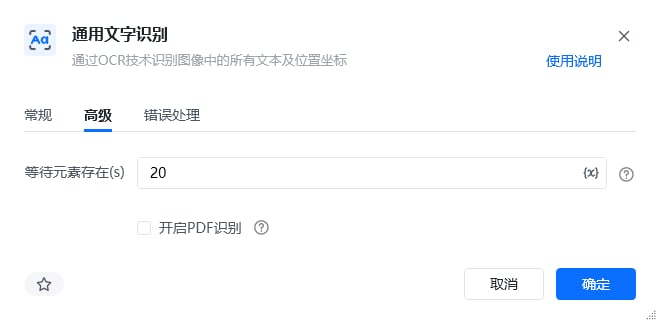
| **PDF页码** | 勾选”开启PDF识别“后,填写需要识别的PDF文件的对应页码。当pdf file 参数有效时,识别传入页码的对应页面内容 |
| **等待元素存在(s)** | 等待目标元素存在的超时时间 |
## 使用示例
| 参数 | 说明 |
| ------------- | ------------------------------------------------------------ |
| **PDF页码** | 勾选”开启PDF识别“后,填写需要识别的PDF文件的对应页码。当pdf file 参数有效时,识别传入页码的对应页面内容 |
| **等待元素存在(s)** | 等待目标元素存在的超时时间 |
## 使用示例

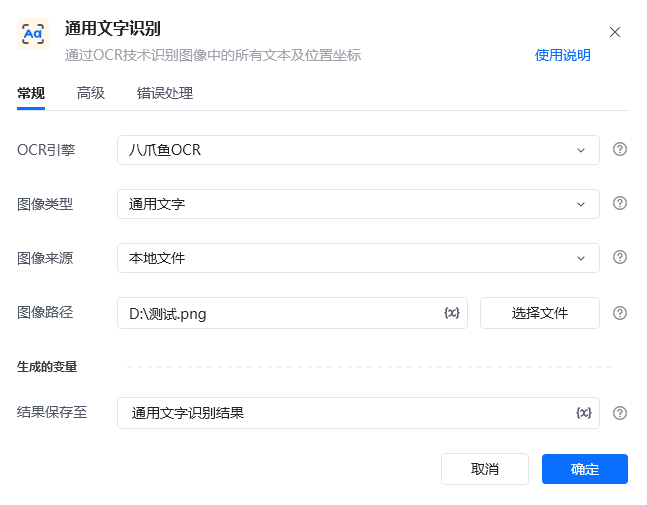 **该流程执行逻辑:**
1. 准备文字图片 `D:\测试.png`,在【通用文字识别】中选择“本地文件”和与图片匹配的识别类型。
2. 将结果保存到变量“通用文字识别结果”,然后执行 OCR;高精度模式识别更细致,但耗时可能更长。
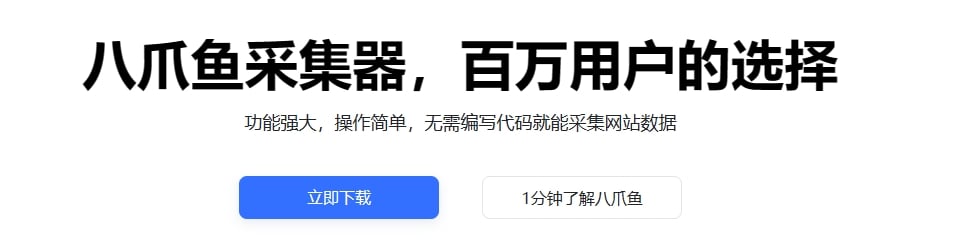
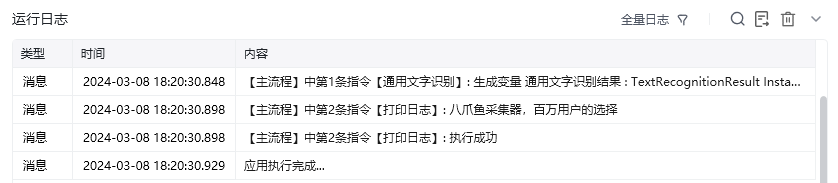
3. 使用【打印日志】输出识别文本,核对“八爪鱼采集器,百万用户的选择……”等内容是否与原图一致。
完整流程示例:[打开应用示例](https://rpa.bazhuayu.com/shareableLink/65eae73517e4827f7b487e08)
### 效果展示
**该流程执行逻辑:**
1. 准备文字图片 `D:\测试.png`,在【通用文字识别】中选择“本地文件”和与图片匹配的识别类型。
2. 将结果保存到变量“通用文字识别结果”,然后执行 OCR;高精度模式识别更细致,但耗时可能更长。
3. 使用【打印日志】输出识别文本,核对“八爪鱼采集器,百万用户的选择……”等内容是否与原图一致。
完整流程示例:[打开应用示例](https://rpa.bazhuayu.com/shareableLink/65eae73517e4827f7b487e08)
### 效果展示
 使用指令过程中遇到问题?前往 [八爪鱼RPA 开发者社区问答板块](https://rpa.bazhuayu.com/community/questions) 提问,获取官方与社区帮助。