> ## Documentation Index
> Fetch the complete documentation index at: https://rpa.bazhuayu.com/helpcenter/llms.txt
> Use this file to discover all available pages before exploring further.

# 图片旋转验证码

## 指令说明

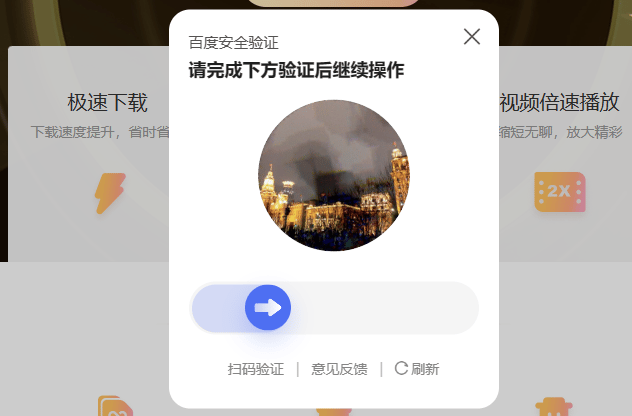
**描述：** 识别验证码的拼图位置，并拖动滑块旋转图片完成验证。支持网页和桌面软件中的验证码。

## 参数说明

<Tabs>
  <Tab title="常规">
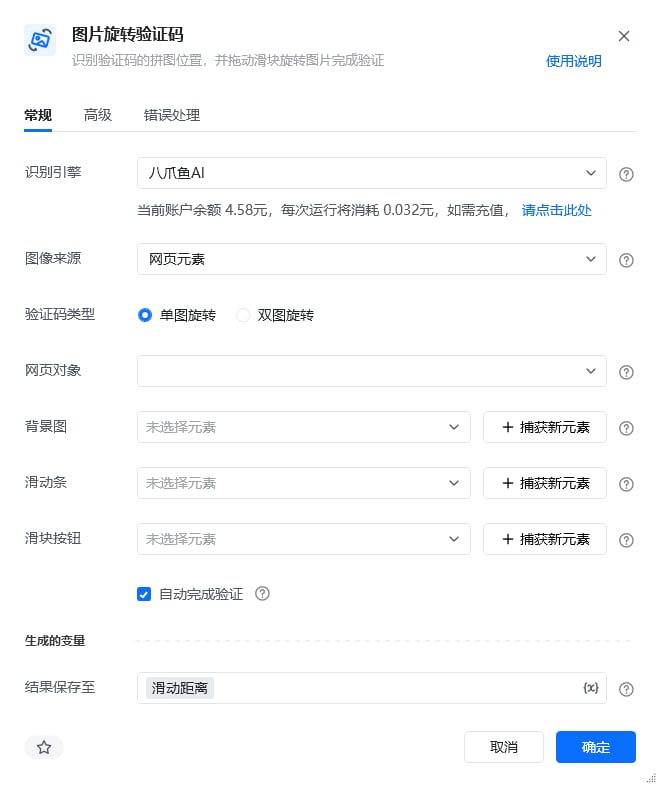
    <img src="https://mintcdn.com/bazhuayu-rpa-docs/EtocdB47VU9Ofcfu/helpcenter/commands/ai/images/recognizerotationcommand-10.png?fit=max&auto=format&n=EtocdB47VU9Ofcfu&q=85&s=ddf74f61b9ae7a3d7f72f532e517b688" alt="图片旋转验证码指令参数面板" width="660" height="787" data-path="helpcenter/commands/ai/images/recognizerotationcommand-10.png" />

    | 参数       | 说明                                                               |
    | -------- | ---------------------------------------------------------------- |
    | **识别引擎** | 默认使用八爪鱼AI。                                                       |
    | **图像来源** | 选要识别的图像是来源于网页元素还是桌面元素。Web网页类型的选网页元素，桌面端软件的选桌面元素。                 |
    | **网页对象** | 图像来源是网页元素时需要选择网页对象，即选择识别哪个网页中的图像。                                |
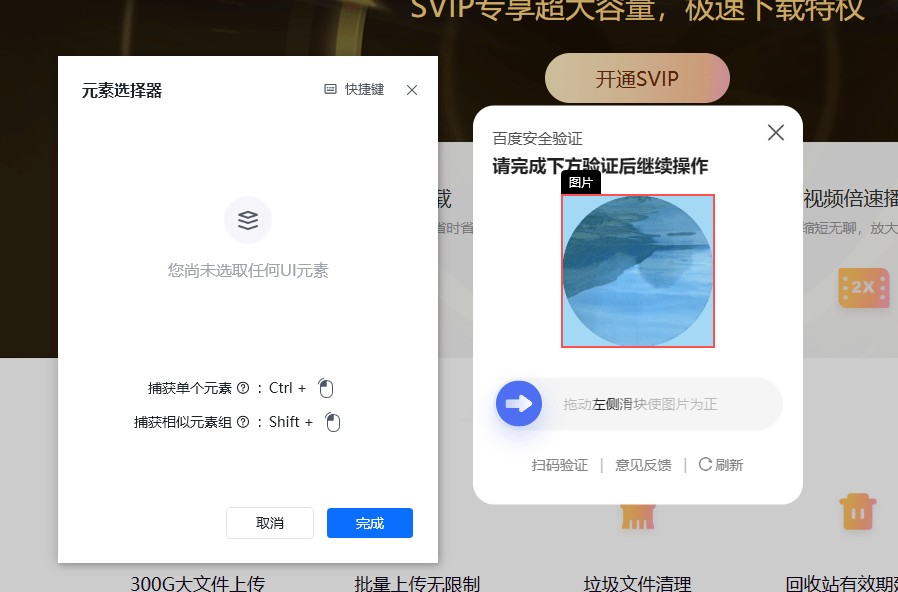
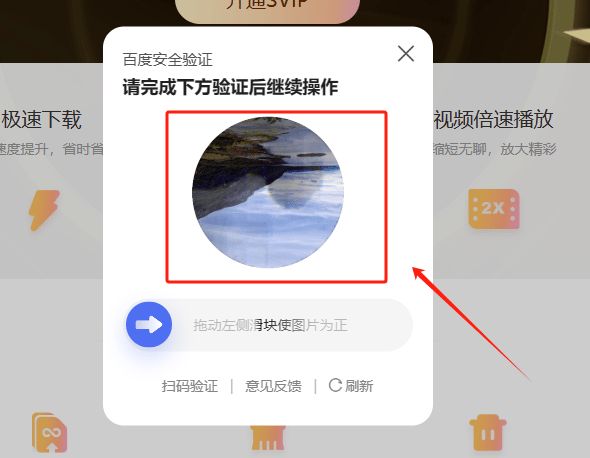
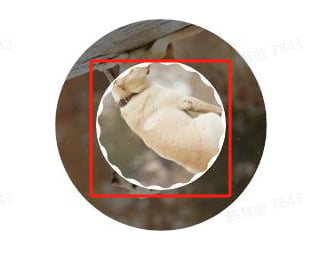
    | **背景图**  | 选择滑块旋转的背景图，可以从元素库中选择，也可以直接从网页或桌面上捕获，如下方截图中的红框内容。                 |
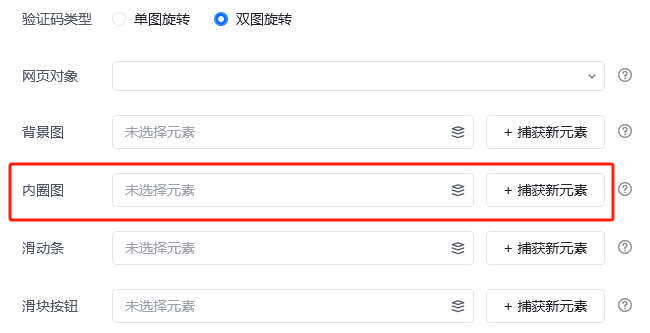
    | **内圈图**  | 验证码为双图旋转时，需选择验证码的内圈图。选择内圈图，可以从元素库中选择，也可以直接从网页或桌面上捕获，如下方截图中的红框内容。 |
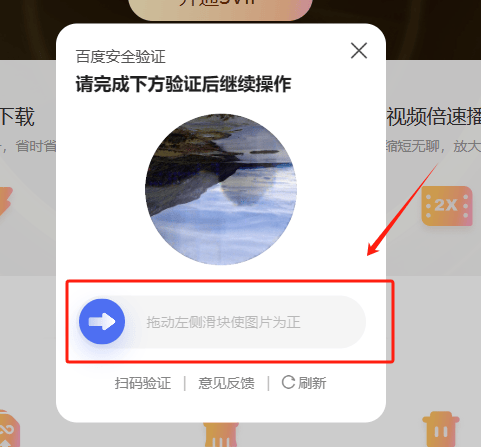
    | **滑动条**  | 选择滑块按钮所在的滑动条，可以从元素库中选择，也可以直接从网页或桌面上捕获，如下方截图中的红框内容。               |
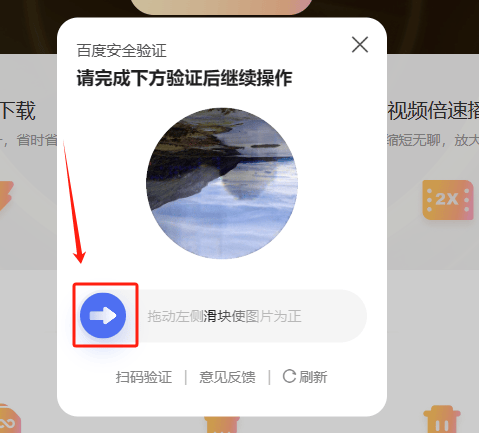
    | **滑块按钮** | 选择需要拖动的滑块位置，可以从元素库中选择，也可以直接从网页或桌面上捕获，如下方截图中的红框内容。                |
  </Tab>

  <Tab title="高级">
    本指令暂无高级参数。
  </Tab>
</Tabs>

## 使用示例

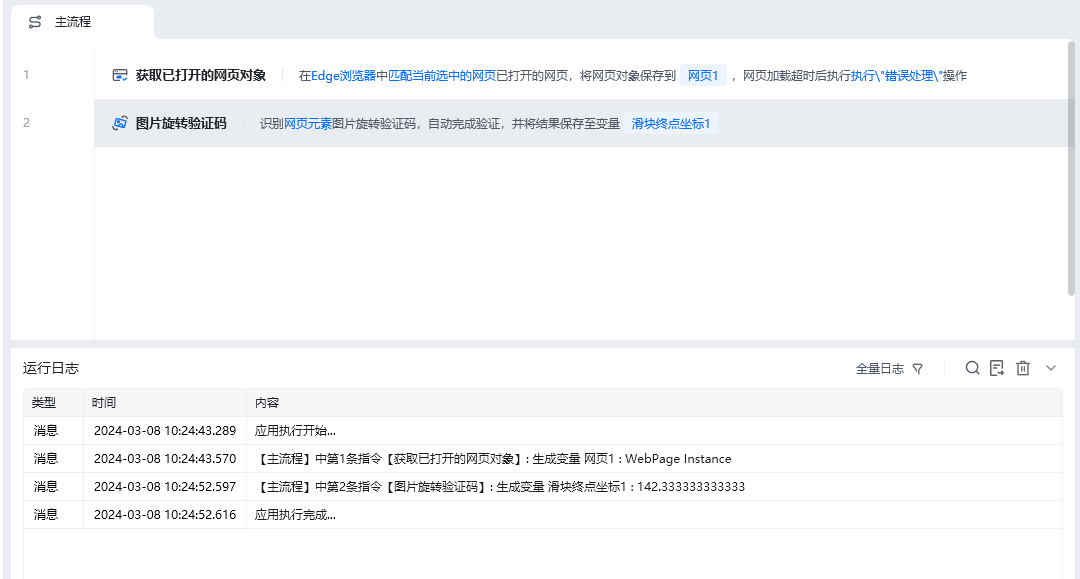
<img src="https://mintcdn.com/bazhuayu-rpa-docs/EtocdB47VU9Ofcfu/helpcenter/commands/ai/images/recognizerotationcommand-06.png?fit=max&auto=format&n=EtocdB47VU9Ofcfu&q=85&s=7162d4b0fe9c3f98eb7b0a63f9f7b4a0" alt="图片旋转验证码使用示例" width="1080" height="579" data-path="helpcenter/commands/ai/images/recognizerotationcommand-06.png" />

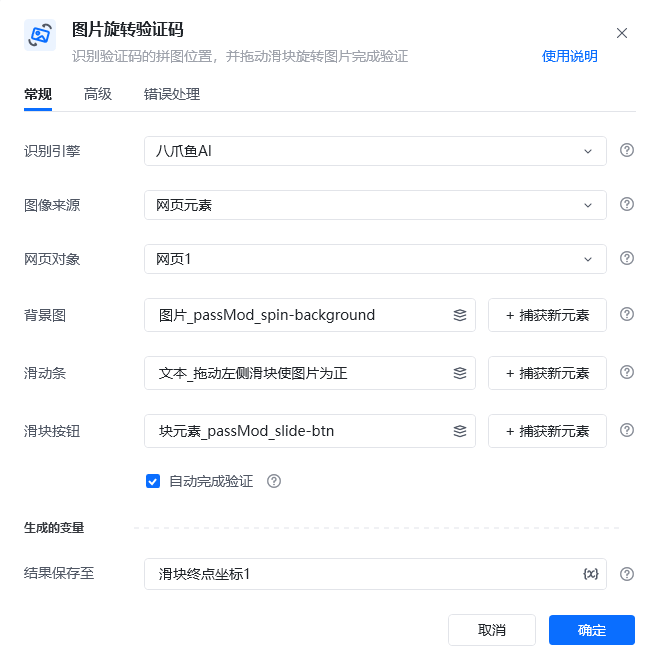
<img src="https://mintcdn.com/bazhuayu-rpa-docs/EtocdB47VU9Ofcfu/helpcenter/commands/ai/images/recognizerotationcommand-05.png?fit=max&auto=format&n=EtocdB47VU9Ofcfu&q=85&s=24423b894124dd9731be2b327c68475e" alt="图片旋转验证码使用示例" width="653" height="662" data-path="helpcenter/commands/ai/images/recognizerotationcommand-05.png" />

<img src="https://mintcdn.com/bazhuayu-rpa-docs/EtocdB47VU9Ofcfu/helpcenter/commands/ai/images/recognizerotationcommand-04.png?fit=max&auto=format&n=EtocdB47VU9Ofcfu&q=85&s=edfeffabc6ce122942f44d2224ba7053" alt="图片旋转验证码使用示例" width="898" height="592" data-path="helpcenter/commands/ai/images/recognizerotationcommand-04.png" />

<img src="https://mintcdn.com/bazhuayu-rpa-docs/EtocdB47VU9Ofcfu/helpcenter/commands/ai/images/recognizerotationcommand-08.png?fit=max&auto=format&n=EtocdB47VU9Ofcfu&q=85&s=baf18b88460cc7d1a1640db0ff6fcef1" alt="图片旋转验证码使用示例" width="650" height="333" data-path="helpcenter/commands/ai/images/recognizerotationcommand-08.png" />

**该流程执行逻辑：**

1. 打开包含旋转验证码的网页，分别选择验证码背景图、滑块条和滑块按钮元素。
2. 执行【图片旋转验证码】识别图片需要旋转的距离，并将滑块终点坐标保存到结果变量中。
3. 示例勾选“自动完成验证”，因此识别完成后会自动拖动滑块、旋转图片并提交验证；未勾选时，可读取结果变量中的坐标自行完成拖动。

### 效果展示

<img src="https://mintcdn.com/bazhuayu-rpa-docs/EtocdB47VU9Ofcfu/helpcenter/commands/ai/images/recognizerotationcommand-01.png?fit=max&auto=format&n=EtocdB47VU9Ofcfu&q=85&s=ad377d4f4bf05895a2eec5d53c8d4d57" alt="图片旋转验证码效果展示" width="590" height="458" data-path="helpcenter/commands/ai/images/recognizerotationcommand-01.png" />

<img src="https://mintcdn.com/bazhuayu-rpa-docs/EtocdB47VU9Ofcfu/helpcenter/commands/ai/images/recognizerotationcommand-02.png?fit=max&auto=format&n=EtocdB47VU9Ofcfu&q=85&s=3095ebe6af0838c3abdcfb2e197b8f61" alt="图片旋转验证码效果展示" width="481" height="447" data-path="helpcenter/commands/ai/images/recognizerotationcommand-02.png" />

<img src="https://mintcdn.com/bazhuayu-rpa-docs/EtocdB47VU9Ofcfu/helpcenter/commands/ai/images/recognizerotationcommand-03.png?fit=max&auto=format&n=EtocdB47VU9Ofcfu&q=85&s=04901c7c1191d6148eef37ebc6f53f2e" alt="图片旋转验证码效果展示" width="479" height="433" data-path="helpcenter/commands/ai/images/recognizerotationcommand-03.png" />

<img src="https://mintcdn.com/bazhuayu-rpa-docs/EtocdB47VU9Ofcfu/helpcenter/commands/ai/images/recognizerotationcommand-07.png?fit=max&auto=format&n=EtocdB47VU9Ofcfu&q=85&s=ac81238e51f79276882f05486f79d168" alt="图片旋转验证码效果展示" width="632" height="416" data-path="helpcenter/commands/ai/images/recognizerotationcommand-07.png" />

<img src="https://mintcdn.com/bazhuayu-rpa-docs/EtocdB47VU9Ofcfu/helpcenter/commands/ai/images/recognizerotationcommand-09.png?fit=max&auto=format&n=EtocdB47VU9Ofcfu&q=85&s=9bd8942b4896433ccd84058438d2ecca" alt="图片旋转验证码效果展示" width="320" height="262" data-path="helpcenter/commands/ai/images/recognizerotationcommand-09.png" />

使用小Tips

**参数选择示例（背景图、内圈图、滑动条、滑块按钮的捕获方式）：**

**操作示例：**

<Info>
  使用指令过程中遇到问题？前往 [八爪鱼RPA 开发者社区问答板块](https://rpa.bazhuayu.com/community/questions) 提问，获取官方与社区帮助。
</Info>