> ## Documentation Index
> Fetch the complete documentation index at: https://rpa.bazhuayu.com/helpcenter/llms.txt
> Use this file to discover all available pages before exploring further.
# 点击图像
## 指令说明
**描述:** 在指定范围内查找图像并点击。
## 参数说明
 | 参数 | 说明 |
| ---------- | ----------------------------- |
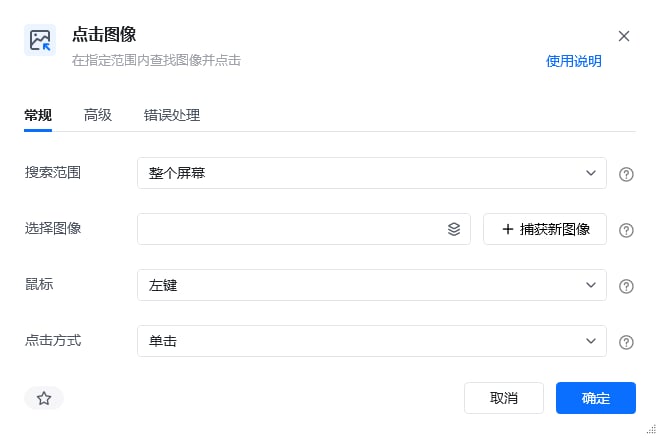
| **搜索范围** | 查找目标图像的范围,可选:整个屏幕、窗口对象或当前激活窗口 |
| **选择图像** | 选择已存在的图像,或捕获新图像 |
| **鼠标** | 选择鼠标点击的按键,可选:左键、右键 |
| **点击方式** | 选择鼠标点击的方式,可选:单击、双击 |
| **添加窗口类型** | 一般在存在多个相同标题的窗口的情况下使用 |
| **根据正则匹配** | 根据通配符匹配,比如 `*记事本` 表示以记事本结尾的任意 |
| **窗口是否** | 存在/不存在 |
| 参数 | 说明 |
| ---------- | ----------------------------- |
| **搜索范围** | 查找目标图像的范围,可选:整个屏幕、窗口对象或当前激活窗口 |
| **选择图像** | 选择已存在的图像,或捕获新图像 |
| **鼠标** | 选择鼠标点击的按键,可选:左键、右键 |
| **点击方式** | 选择鼠标点击的方式,可选:单击、双击 |
| **添加窗口类型** | 一般在存在多个相同标题的窗口的情况下使用 |
| **根据正则匹配** | 根据通配符匹配,比如 `*记事本` 表示以记事本结尾的任意 |
| **窗口是否** | 存在/不存在 |
 | 参数 | 说明 |
| ------------- | ---------------------------------------- |
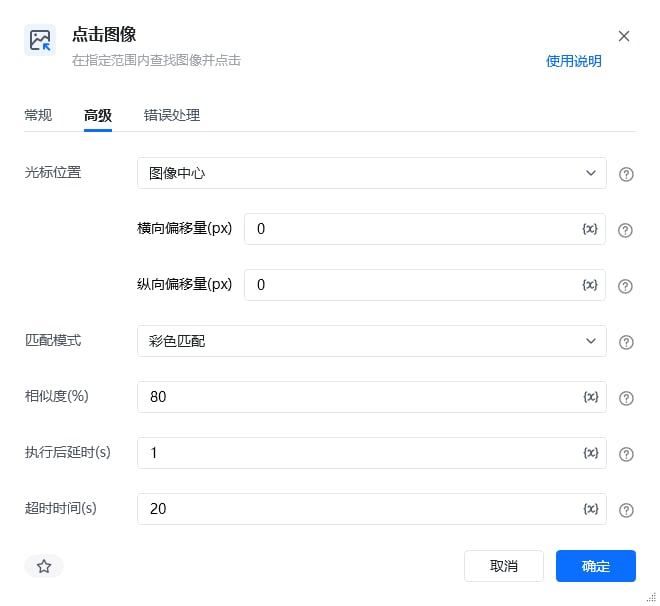
| **光标位置** | 请选择光标偏移的起点,默认为图像中 |
| **相似度** | 指定目标图像与原始图像的相似程度,推荐相似度为 80% |
| **匹配模式** | 查找图像的匹配方式,彩色匹配相对灰度匹配更加精确 |
| **横向偏移量(px)** | 输入 10 表示将光标从光标位置开始右移 10px,-10 则表示左移 10px |
| **纵向偏移量(px)** | 输入 10 表示将光标从光标位置开始下移 10px,-10 则表示上移 10px |
## 使用示例
| 参数 | 说明 |
| ------------- | ---------------------------------------- |
| **光标位置** | 请选择光标偏移的起点,默认为图像中 |
| **相似度** | 指定目标图像与原始图像的相似程度,推荐相似度为 80% |
| **匹配模式** | 查找图像的匹配方式,彩色匹配相对灰度匹配更加精确 |
| **横向偏移量(px)** | 输入 10 表示将光标从光标位置开始右移 10px,-10 则表示左移 10px |
| **纵向偏移量(px)** | 输入 10 表示将光标从光标位置开始下移 10px,-10 则表示上移 10px |
## 使用示例
 **该流程执行逻辑:**
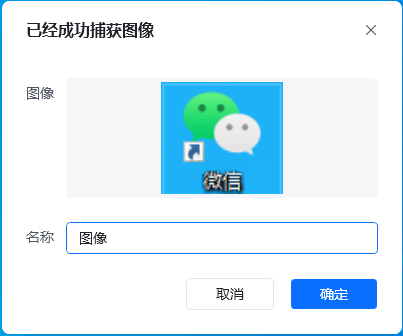
1. 使用“捕获新图像”截取桌面上的微信图标,并将该图像设置为查找目标。
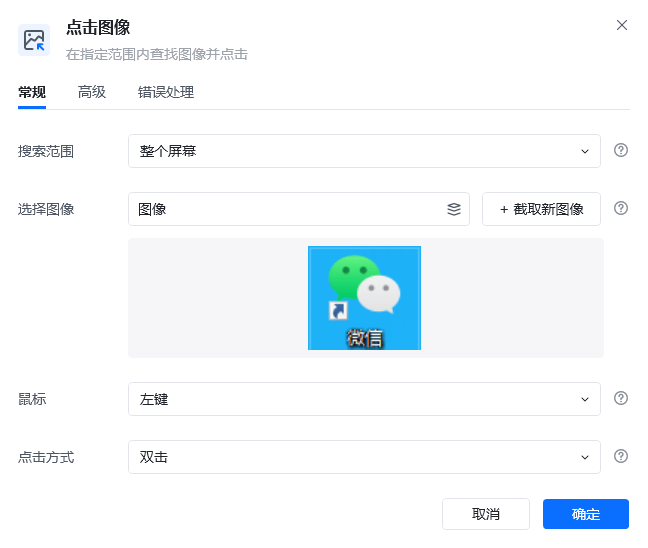
2. 在【点击图像】中把搜索范围设置为整个屏幕,鼠标按钮设置为左键,点击方式设置为双击。
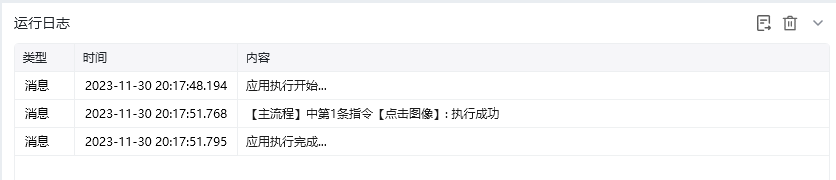
3. 运行后,指令在屏幕中匹配微信图标并执行双击,成功打开微信应用。
### 效果展示
**该流程执行逻辑:**
1. 使用“捕获新图像”截取桌面上的微信图标,并将该图像设置为查找目标。
2. 在【点击图像】中把搜索范围设置为整个屏幕,鼠标按钮设置为左键,点击方式设置为双击。
3. 运行后,指令在屏幕中匹配微信图标并执行双击,成功打开微信应用。
### 效果展示
 使用指令过程中遇到问题?前往 [八爪鱼RPA 开发者社区问答板块](https://rpa.bazhuayu.com/community/questions) 提问,获取官方与社区帮助。