> ## Documentation Index
> Fetch the complete documentation index at: https://rpa.bazhuayu.com/helpcenter/llms.txt
> Use this file to discover all available pages before exploring further.

# 网页截图

## 指令说明

**描述：** 对指定网页元素进行截图，并将截图保存至指定文件夹。

## 参数说明

<Tabs>
  <Tab title="常规">
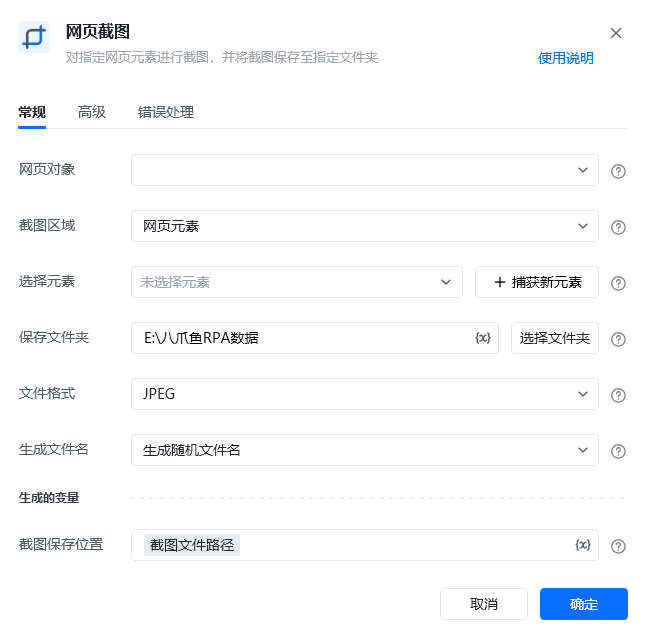
    <img src="https://mintcdn.com/bazhuayu-rpa-docs/v_rTeoLOdoPnGE6I/helpcenter/commands/web-automation/images/web-capture-01.png?fit=max&auto=format&n=v_rTeoLOdoPnGE6I&q=85&s=b5aca86f6e2392f70e5cd62495dfcc84" alt="网页截图指令参数面板" width="646" height="638" data-path="helpcenter/commands/web-automation/images/web-capture-01.png" />

    | 参数         | 说明                                                                                                                      |
    | ---------- | ----------------------------------------------------------------------------------------------------------------------- |
    | **网页对象**   | 选择一个之前通过【打开网页】或【获取已打开的网页对象】指令创建的网页对象                                                                                    |
    | **截图区域**   | 三种区域，若选择整个网页，会生成整个页面的长图。<br />网页元素：通过指定操作目标的显示内容进行截图<br />网页可见区域：截取当前浏览器中可视区域的图片<br />整个网页：整个网页有滚动条的情况，会滚动网页之后进行整个网页长截图 |
    | **选择元素**   | 选择要操作的目标元素                                                                                                              |
    | **保存文件夹**  | 截图的保存文件夹位置选择                                                                                                            |
    | **文件格式**   | 截图图片的文件格式：JPEG / PNG                                                                                                    |
    | **生成文件名**  | 选择生成随机文件名或自定义文件名                                                                                                        |
    | **截图保存位置** | 截图文件所在的位置:文件路径+名称                                                                                                       |

  </Tab>

  <Tab title="高级">
    | 参数            | 说明                 |
    | ------------- | ------------------ |
    | **等待元素存在（s）** | 等待目标元素存在的超时时间，单位 秒 |
  </Tab>
</Tabs>

## 使用示例

<img src="https://mintcdn.com/bazhuayu-rpa-docs/v_rTeoLOdoPnGE6I/helpcenter/commands/web-automation/images/web-capture-02.png?fit=max&auto=format&n=v_rTeoLOdoPnGE6I&q=85&s=d974d6992d31252f61cf8c40b6261bcb" alt="网页截图使用示例 - 流程搭建" width="1230" height="170" data-path="helpcenter/commands/web-automation/images/web-capture-02.png" />

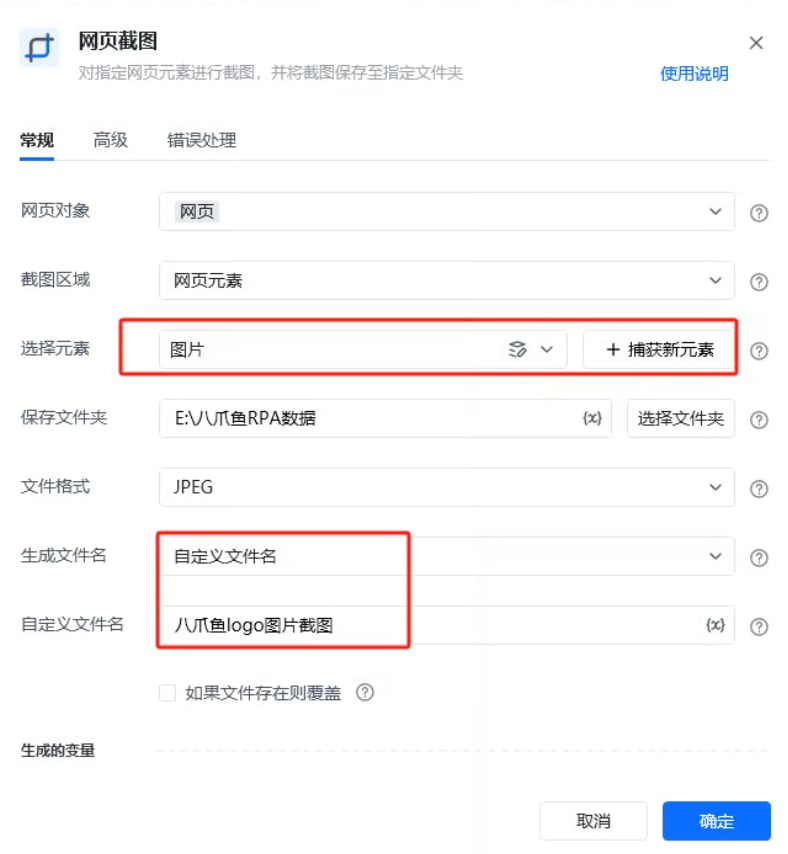
<img src="https://mintcdn.com/bazhuayu-rpa-docs/v_rTeoLOdoPnGE6I/helpcenter/commands/web-automation/images/web-capture-02-add.png?fit=max&auto=format&n=v_rTeoLOdoPnGE6I&q=85&s=eede2b336c47d95f2b09e241b7e54e39" alt="网页截图使用示例 - 流程搭建 2" width="788" height="854" data-path="helpcenter/commands/web-automation/images/web-capture-02-add.png" />

**该流程执行逻辑：**

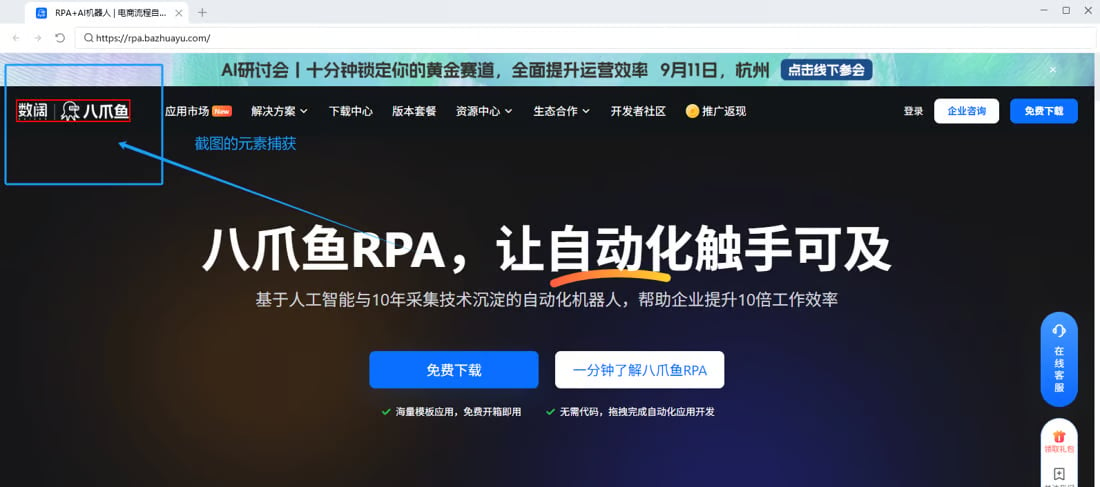
打开八爪鱼RPA官网：[https://rpa.bazhuayu.com/](https://rpa.bazhuayu.com/)

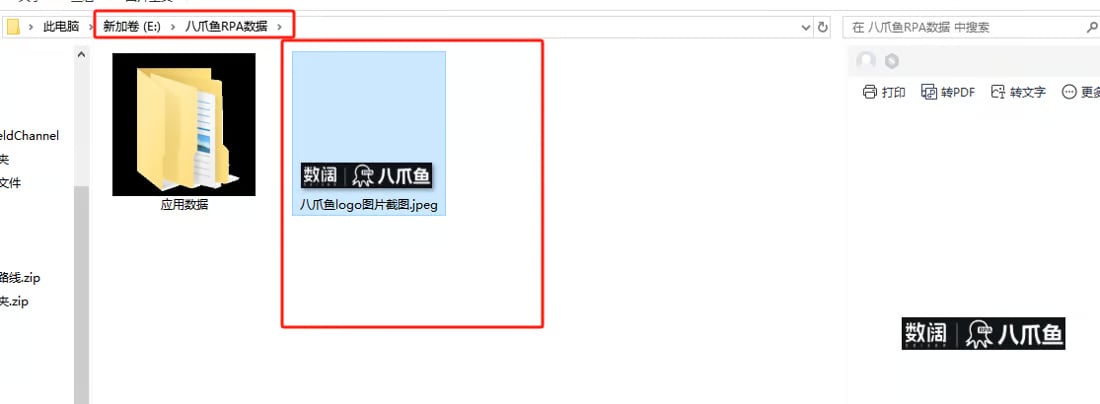
使用【网页截图】指令对「八爪鱼logo」网页区域进行JPEG图片的截图，并将图片保存至“E:\八爪鱼RPA数据”文件夹中。

### 效果展示

网页/元素截图成功保存到指定路径。

<img src="https://mintcdn.com/bazhuayu-rpa-docs/v_rTeoLOdoPnGE6I/helpcenter/commands/web-automation/images/web-capture-03.png?fit=max&auto=format&n=v_rTeoLOdoPnGE6I&q=85&s=f8127e929eb27be1a240710abc89b782" alt="网页截图使用示例 - 效果展示" width="1100" height="160" data-path="helpcenter/commands/web-automation/images/web-capture-03.png" />

<img src="https://mintcdn.com/bazhuayu-rpa-docs/v_rTeoLOdoPnGE6I/helpcenter/commands/web-automation/images/web-capture-04.png?fit=max&auto=format&n=v_rTeoLOdoPnGE6I&q=85&s=366576f834eb2772214648e349245fef" alt="网页截图使用示例 - 效果展示 2" width="1100" height="487" data-path="helpcenter/commands/web-automation/images/web-capture-04.png" />

<img src="https://mintcdn.com/bazhuayu-rpa-docs/v_rTeoLOdoPnGE6I/helpcenter/commands/web-automation/images/web-capture-05.png?fit=max&auto=format&n=v_rTeoLOdoPnGE6I&q=85&s=9ff0c361496edac6524f2db7f2626e0f" alt="网页截图使用示例 - 效果展示 3" width="1100" height="404" data-path="helpcenter/commands/web-automation/images/web-capture-05.png" />

<Info>
  使用指令过程中遇到问题？前往 [八爪鱼RPA 开发者社区问答板块](https://rpa.bazhuayu.com/community/questions) 提问，获取官方与社区帮助。
</Info>